
For: Administrators · 2 minutes read
Everyone who works in DEOS has their own account. Nobody shares a password.
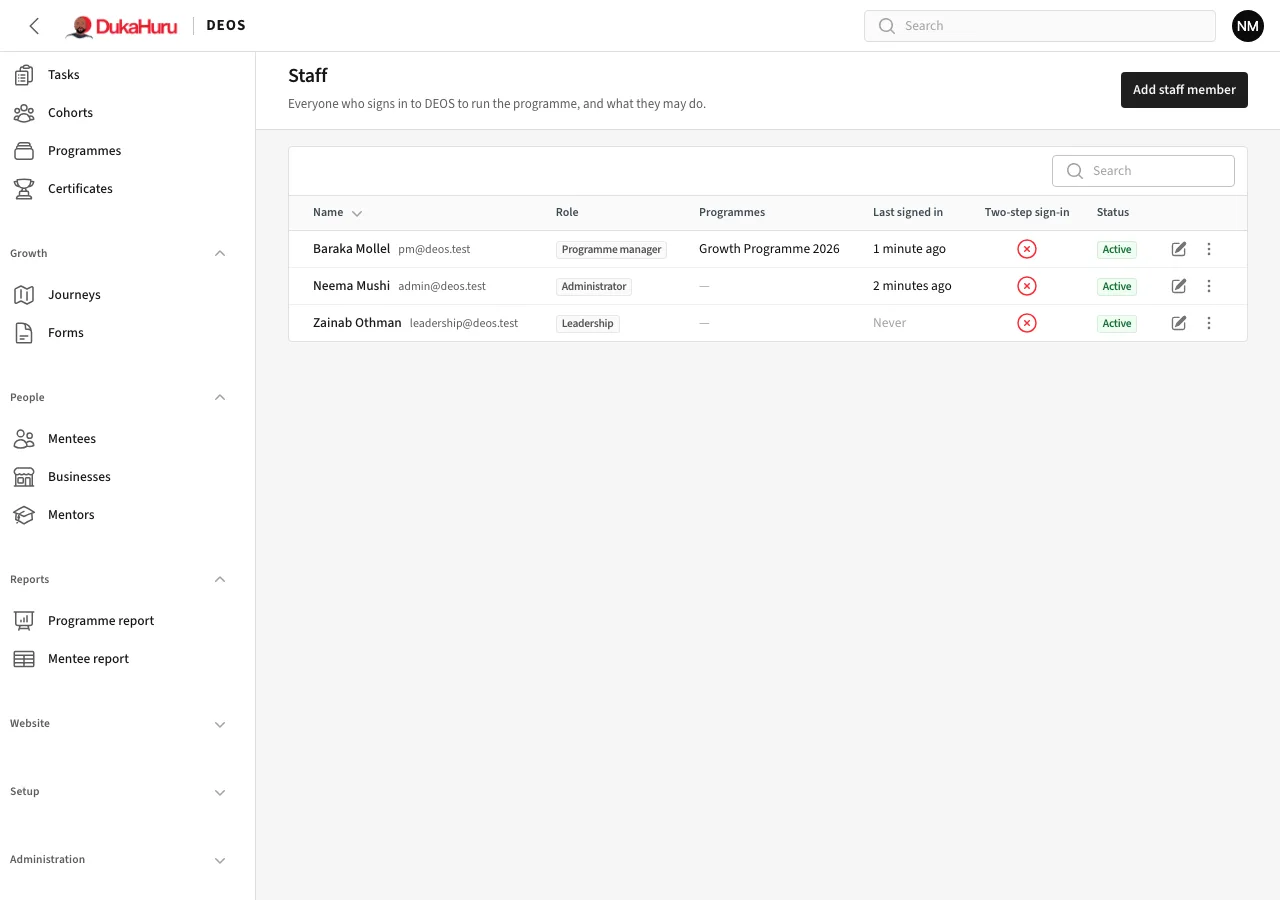
Invite a staff member
- Open Administration → Staff and click Add staff member.
- Enter their name and email and choose a role:
- Administrator: everything, including settings and staff.
- Programme manager: runs the programmes they manage, their mentees, sessions and the website.
- Leadership: reads everything, changes nothing.
- For a programme manager, choose their programmes.
- Save. DEOS emails them an invitation link to choose a password.
Add a mentor
- Open Mentors and click Add mentor.
- Enter the mentor's details and expertise. They get an invitation by email like staff.
- Assign the mentor to a cohort or to single mentees from the cohort's Mentors tab or the mentee's page (Assign mentor).
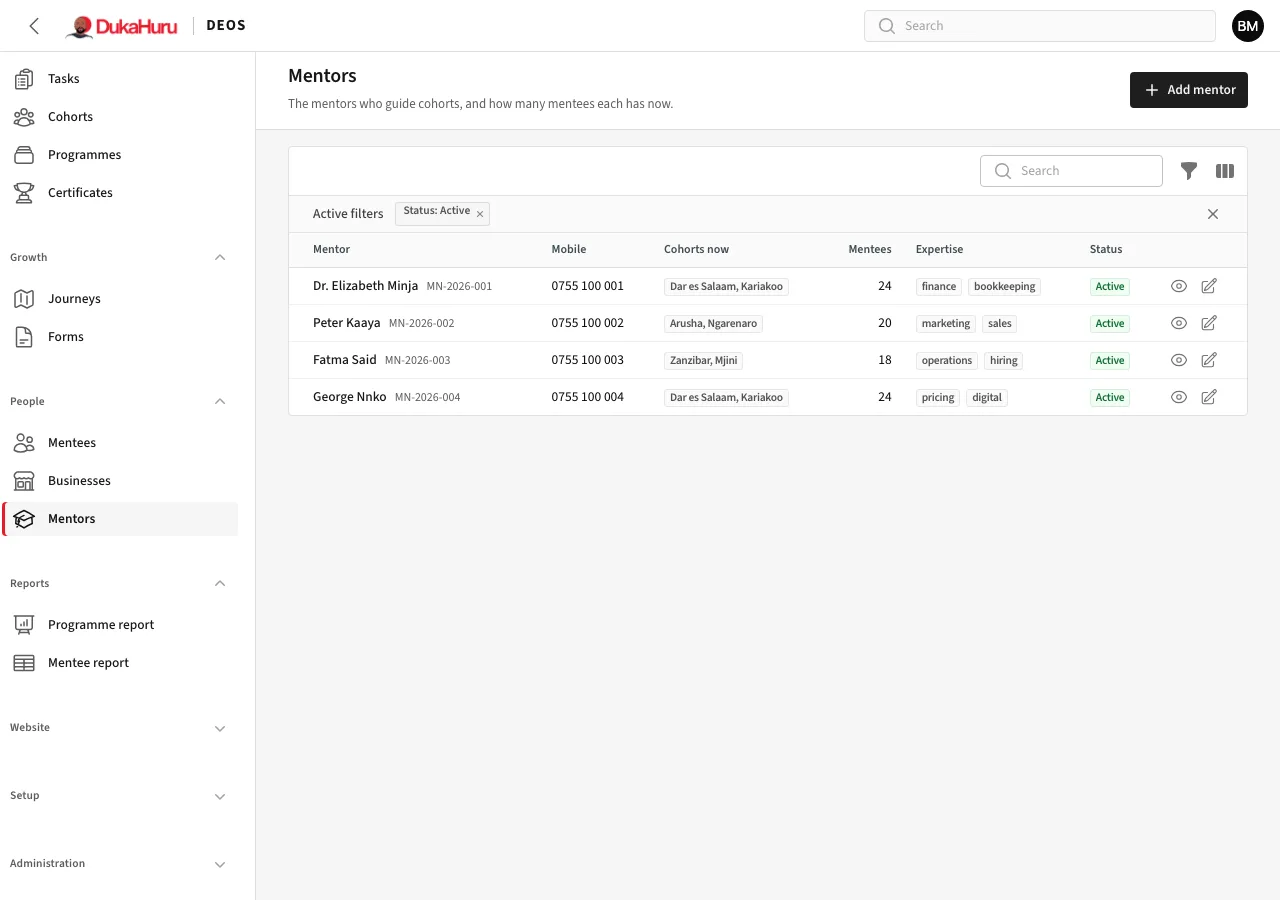
A mentor sees only their own mentees and cohorts, and the sessions they facilitate. See the Mentor manual.
Invitations and passwords
From a staff member's row you can Send the invitation again or Send a password reset link.
When someone leaves
Edit their row and change the Status so they can no longer sign in. Their history stays. Administration → Sign-in activity shows who signed in and when.